
Micromine Origin & Beyond is available through several licence types. These are cloud-based licences, node-lock licences, and USB dongles (security keys), all provided by Micromine Australia Pty Ltd Licensing.
This article will walk you through the steps to activate a node-locked licence for both Micromine Origin & Beyond and Origin & Beyond for Team Viewers.
Activating a New Licence
After installation, the following screen will appear when you start the application:
Note: If you've previously added a licence, you can access this window by going to the Project Backstage menu. Click Project, select Licence, and then click Licence Activation.
To activate a licence using an activation code supplied to you by Micromine Australia Pty Ltd Licensing:
- Select Activate a Node-Lock Licence.
- Click Next to begin the activation process.
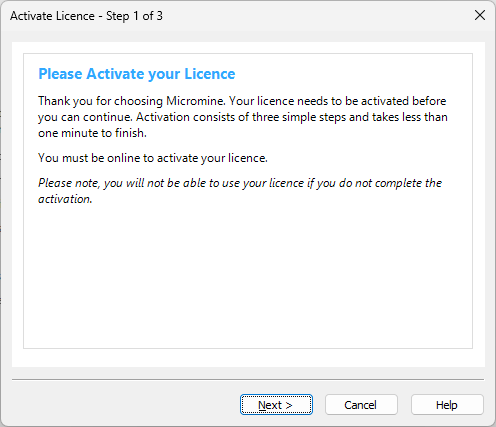
- Enter the activation code provided to you by Micromine Australia Pty Ltd Licensing.
- Enter your contact details. Click Next.
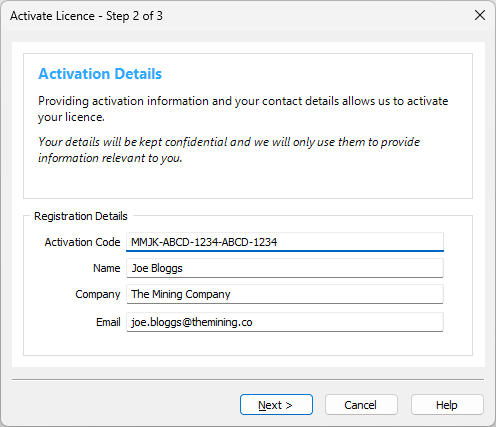
- Please wait while the application contacts Licensing Services to obtain activation data.
- Press Next to start the licence activation.
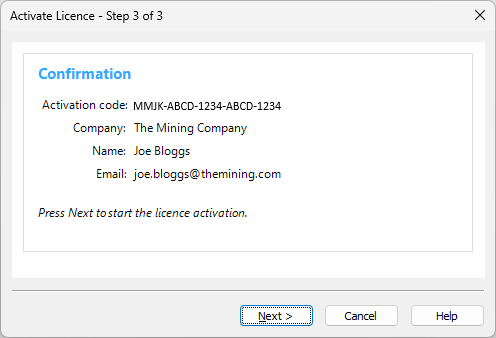
- If the activation is successful, you're ready to go. Press Next to complete the activation process.
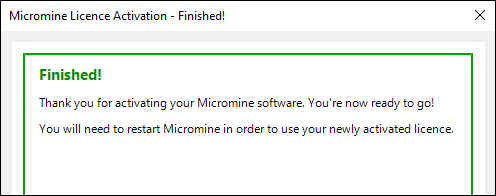
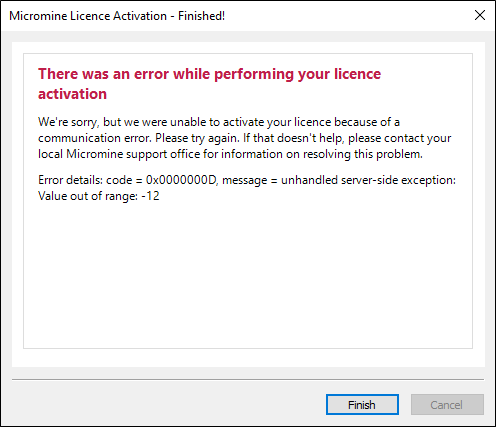
- If an error occurs please take a screenshot, or write down the error code and the message, before contacting licensing support.
Comments
0 comments
Please sign in to leave a comment.