
Description
To move a local node lock licence to another computer, you must transfer the licence. The option to transfer is only available once you have started the application.
Steps
- Start the application.
- Click the Project tab to open the backstage menu and select Licence | Licence Manager.
- Click to select the Local Licences tab.
- Select your licence and click Transfer
- Click Next
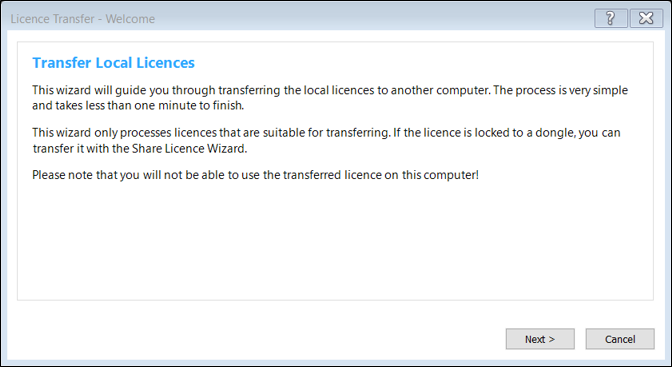
Note that you will no longer be able to use the licence on your current computer once it has been transferred. A warning message is displayed: - Click Continue
-
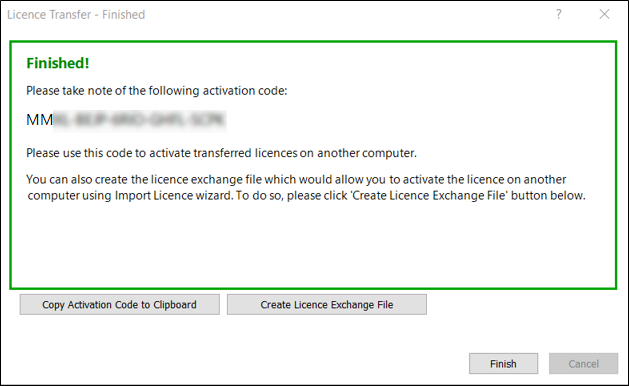
Please select Copy activation code to Clipboard to activate the licence online.
If you lose your code, please contact Micromine Licensing or Support to obtain a new code.
-
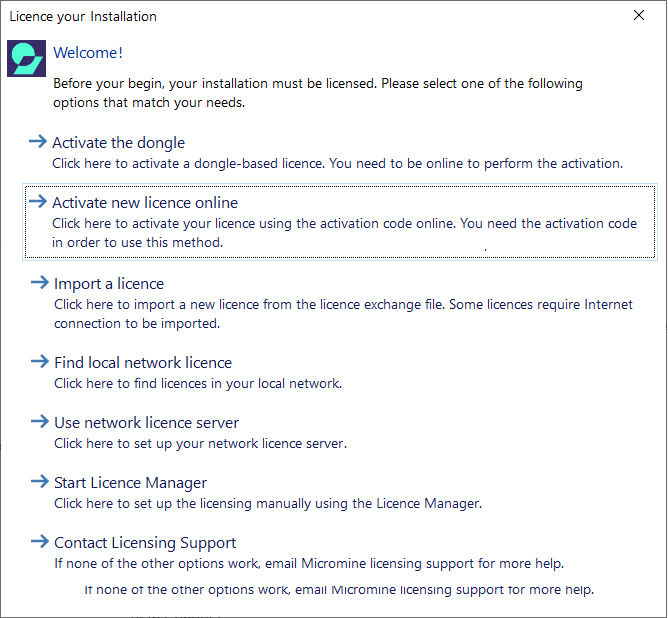
If you installed Micromine Origin & Beyond for the first time on the destination computer, the following screen will appear when you start the application. Click Activate new licence online.
- If the screen above does not appear, click the Project tab to open the backstage menu and select Licence | Online Activation

-
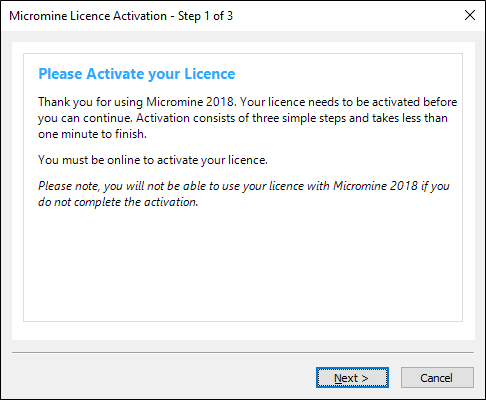
Click Next to begin the activation process.
- Enter the activation code you copied before or the activation code provided to you by Micromine Licensing.
- Enter your contact details.
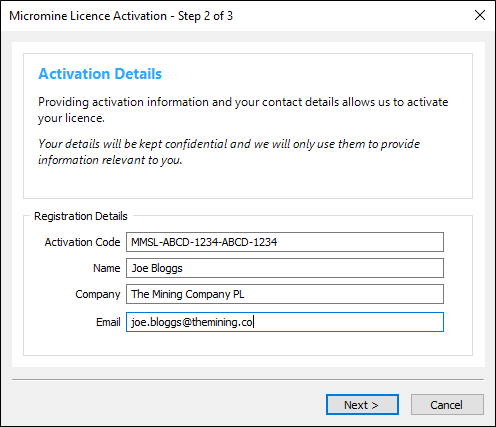
- Please wait while the application contacts Licensing Services to obtain activation data.
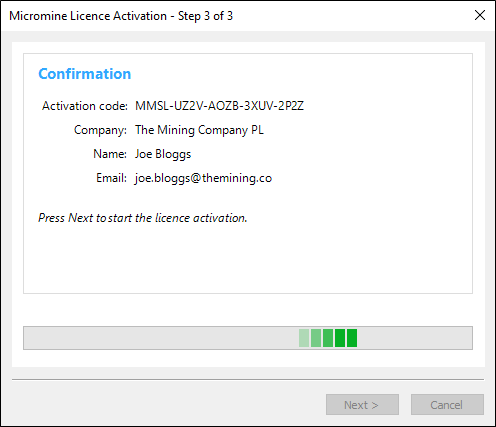
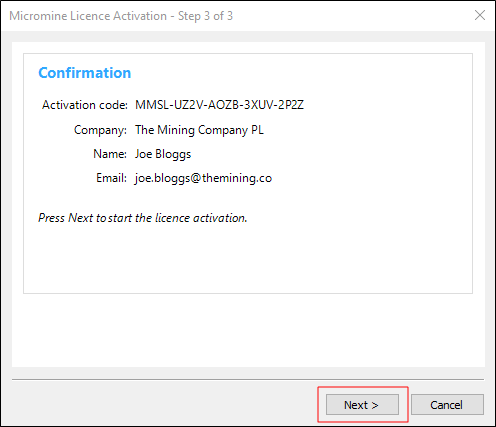
- Press Next to start the licence activation:
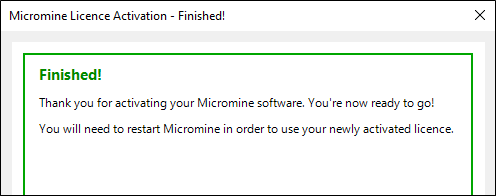
- If the activation is successful, you're ready to go.
Comments
0 comments
Please sign in to leave a comment.